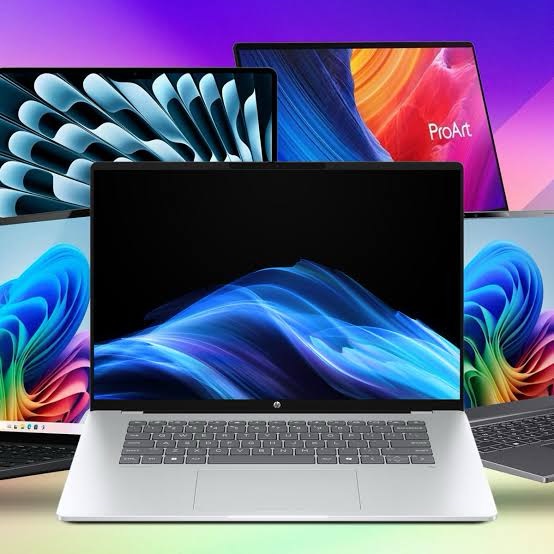
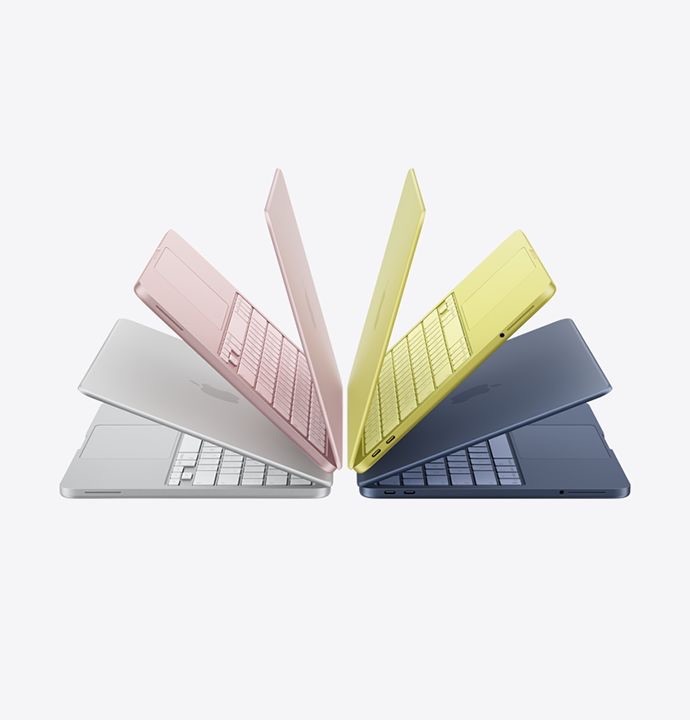
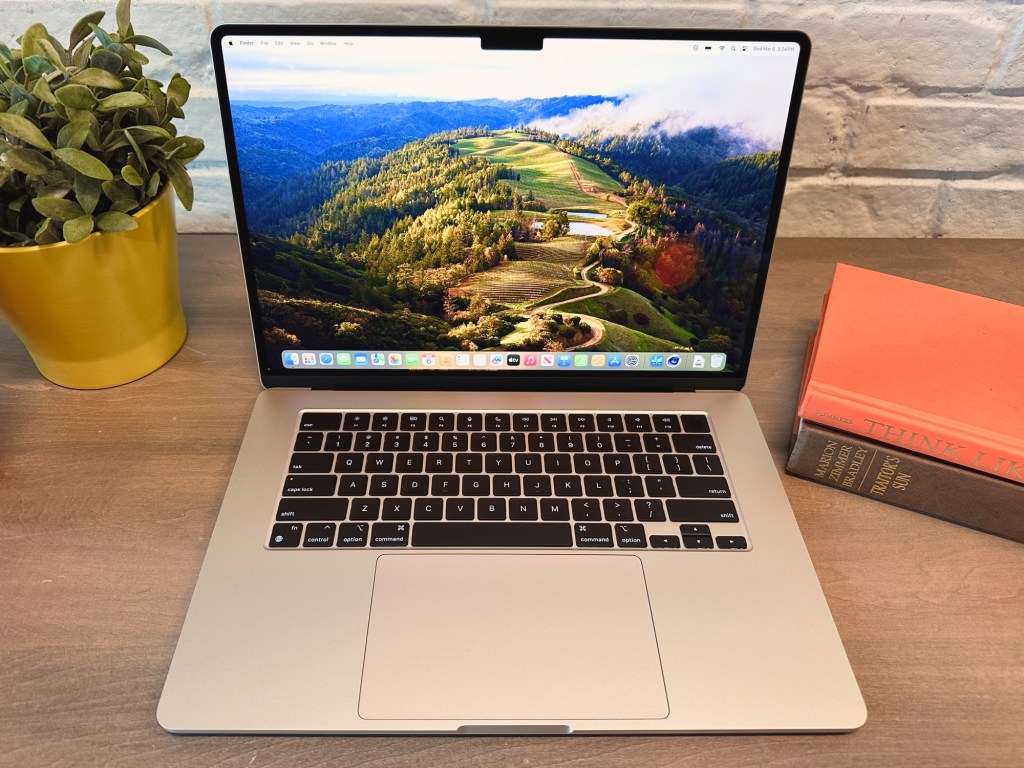
Laptop Buying Guide 2026: How to Choose the Right One for You

Let’s be honest: buying a laptop is still stressful.

You open a browser, type in “best laptop 2026,” and suddenly you’re drowning in jargon. AI accelerators, OLED vs. QD‑LED, Snapdragon X Elite, Copilot+ PC, Thunderbolt 5. It feels like you need a computer science degree just to pick a machine for email and Netflix.

But here’s the truth: the “best” laptop isn’t the one with the highest spec sheet. It’s the one that actually fits your life—whether you’re a student juggling AI‑powered study tools, a creative editing 8K video, or a remote worker who lives on video calls.

This guide cuts through the noise. Let’s find your next machine.

The OS Debate: Apple, Windows, or ChromeOS?

Your ecosystem choice still dictates your entire experience, but in 2026, the lines are blurrier—and AI is everywhere.

· Apple (macOS Sequoia): Apple’s M‑series chips (now M4 and M5) continue to dominate in battery life and raw efficiency. If you’re embedded in the Apple ecosystem (iPhone, iPad, iCloud), the synergy is unmatched. The MacBook Air remains the gold standard for students and professionals who want all‑day battery without a fan. Downsides: gaming is still limited, and upgrading RAM or storage at purchase is pricey.
· Windows 11 (with Copilot+): This is the “do anything” category. Need a 2‑in‑1 tablet/laptop? Windows. Need a desktop‑replacement workstation with discrete graphics? Windows. Looking for a budget machine under $600? Windows. The new wave of Copilot+ PCs (with dedicated NPUs) brings AI features like real‑time translation, system‑wide summarisation, and advanced Windows Studio Effects directly on device—no cloud required.
· ChromeOS (Chromebook Plus): Chromebooks have grown up. The “Chromebook Plus” tier guarantees a minimum spec (Intel Core i3 or AMD Ryzen 3, 8GB RAM, 128GB SSD) and unlocks powerful AI features like built‑in generative photo editing and hands‑free Google Meet enhancements. If 90% of your work lives in a browser or Android apps, a Chromebook offers simplicity, security, and often 10+ hours of battery life for a fraction of the price.

The “3 Pillars” of Performance

You don’t need to know what a “neural processing unit” does under the hood. You just need to understand the three components that actually matter for speed.

The Processor (CPU + NPU)

In 2026, it’s all about the NPU (Neural Processing Unit)—a dedicated chip for AI tasks. A laptop without a decent NPU will feel sluggish in upcoming software.

· Intel: Core Ultra 5 or 7 (Series 2). Avoid older “Core i” models unless you’re on a strict budget.
· AMD: Ryzen AI 7 or 9. Excellent integrated graphics and strong NPU performance.
· Qualcomm: Snapdragon X Elite / X Plus. These ARM‑based chips offer MacBook‑like battery life and silent operation. Just verify that your must‑have apps have native ARM versions or run well under emulation.
· Apple: M4 or M5. Don’t worry about core counts—any of them are blazing fast for 95% of users.

Bottom line: Aim for a chip with an NPU capable of at least 40 TOPS (trillion operations per second)—that’s the baseline for full Copilot+ AI features on Windows.

Memory (RAM)

This is still non‑negotiable. Do not buy a laptop with 8GB of RAM in 2026. It will choke the moment you have a dozen browser tabs, a video call, and an AI assistant running. 16GB is the new minimum. If you do video editing, run virtual machines, or keep hundreds of tabs open, go for 32GB.

Storage (SSD)

NVMe SSDs are standard. Aim for at least 512GB. If you edit video, work with large creative assets, or install multiple AAA games, 1TB is a safer bet. Some ultra‑thin laptops have soldered storage—choose carefully if you think you’ll need to upgrade later.

The Window to Your World: The Display

You look at the screen 100% of the time. Don’t skimp here.

· Resolution: Avoid anything labeled “HD” (1366×768). FHD+ (1920×1200) is the bare minimum. For creative work or media consumption, 2.8K (2880×1800) or 3.2K displays are common and gorgeous.
· OLED vs. IPS / LCD: OLED remains king for contrast and colour—perfect for movies, photo editing, and HDR content. Battery life on OLED has improved significantly, but if you leave static elements on screen for hours, consider a high‑quality IPS or Mini‑LED display (like Apple’s Liquid Retina XDR or Windows “HDR 1000” panels) to avoid any risk of burn‑in.
· Refresh Rate: For gamers and even casual scrollers, 120Hz or higher makes everything feel smoother. For office work, 60Hz is still fine.

Ports, Battery, and the “Dongle Life”

One of the biggest complaints remains the lack of ports on sleek laptops.

· USB‑C / Thunderbolt: Most premium laptops rely entirely on USB‑C (Thunderbolt 4 or 5 on Intel models). If you still use USB‑A peripherals or need HDMI out, factor a small dongle or hub into your budget.
· Battery Life: Look for advertised “all‑day” claims, but read reviews. ARM‑based laptops (MacBooks, Snapdragon X Elite) routinely hit 15–20 hours. x86 laptops (Intel/AMD) have improved but typically land in the 8–12 hour range.
· Weight: If you commute daily, stay under 3.5 lbs. Ultra‑portables under 2.5 lbs are now common and powerful enough for most tasks.

Quick Picks for Every Type of User

If you just want the shortlist, here are the archetypes to search for:

· The Student: MacBook Air (M4) or a Snapdragon X Elite Copilot+ PC (e.g., Dell XPS 13, Lenovo Slim 7x). Both are light, have all‑day battery, and handle everything from essays to light creative work.
· The Office Warrior: Lenovo ThinkPad X1 Carbon (Gen 13) or Dell Latitude 9450. The ThinkPad still has the best keyboard in the business, and both offer enterprise‑grade build quality, 5G options, and superb AI meeting features.
· The Creative (Photo/Video): MacBook Pro 14/16 (M4 Pro/Max) or Asus ProArt P16. Look for OLED or Mini‑LED displays with high colour accuracy (DCI‑P3 or AdobeRGB coverage).
· The Gamer on the Go: Asus ROG Zephyrus G14 (2026 model) or Razer Blade 14. These pack NVIDIA GeForce RTX 50‑series GPUs into relatively portable chassis without the over‑the‑top gamer aesthetic.
· The Budget Conscious: Acer Swift Go 14 or HP Pavilion Aero 13. You can often find solid configurations with 16GB RAM, 512GB SSD, and a decent OLED screen for under $800.

The Bottom Line

Don’t get caught in the spec war. A laptop is a tool—and in 2026, AI integration, battery life, and real‑world usability matter more than peak teraflops.

Before you click “buy,” ask yourself: Does this machine make my daily workflow smoother, or am I paying for features I’ll never use?

Focus on getting 16GB of RAM (or more), a modern processor with a capable NPU, and a screen you can comfortably stare at for hours. Hit those three marks, and you’ll be happy with your purchase for years to come.

What are you using your laptop for in 2026? Drop a comment below—I’m happy to suggest specific models for your budget and workflow!

Your Computer May Already Be Infected—7 Signs to Check Right Now

You know that feeling. The cursor starts stuttering. A random command prompt window flashes on screen for a split second—so fast you convince yourself you imagined it. Then your friend messages you: “Why did you just send me a weird link at 3:00 AM? You were asleep.”

Congratulations. Your computer might be patient zero in a digital zombie apocalypse.

We like to think getting a virus is like it is in the movies—loud sirens, skulls on the screen, a hacker in a hoodie laughing maniacally. In reality, malware is a sneaky parasite. It doesn’t want you to know it’s there. It wants to use your machine to mine crypto, steal your passwords, or email your boss something regrettable.

Here is how to spot the silent invaders before they turn your PC into a botnet soldier.

1,The “Cursor Poltergeist”

If your mouse pointer moves on its own—clicking things while you sit there with your hands in the air eating chips—unplug your internet immediately. While sometimes this is a faulty touchpad driver, it is often a sign that a remote access trojan (RAT) is letting someone else drive.

2,The Fan That’s Screaming in an Empty Room

Open your task manager. Is your CPU usage at 98% even though you only have one Chrome tab open? If your laptop fan sounds like a jet engine taking off while you’re staring at the desktop wallpaper, you likely have “cryptojacking” malware. Hackers are renting out your computer’s processing power to mine Bitcoin. You get the noise and the electric bill; they get the money.

3,The Blinking Hard Drive (When You’re Asleep)

Your computer should not be grinding away at 2:00 AM when it’s supposed to be in “Sleep” mode. If the hard drive activity light is flashing furiously while you’re brushing your teeth, the malware is busy. It’s exfiltrating your data, downloading more malware, or spreading itself to your contacts.

4,The Invisible Ransomware Note (The Scariest One)

This is the big one. If you try to open a document or a photo and it won’t open—or it opens as gibberish—do not restart your computer.
Check your file explorer. If your files now have weird extensions (like .encrypted, .lockbit, or just random strings of numbers), you have ransomware. The files aren’t corrupted; they’re kidnapped. Restarting the computer often destroys the only chance you have to recover them.

5,Fake “System” Alerts That Want You to Panic

A pop-up that says “YOUR COMPUTER HAS BEEN LOCKED. CALL MICROSOFT IMMEDIATELY.” is the digital equivalent of a cold call from “Windows Support.”
Real antivirus software doesn’t scream at you in all caps with a countdown timer. If a pop-up demands you call a phone number to “fix” it, it’s a scam. Do not call the number. They don’t want your virus; they want your credit card.

6,The Browser Hijack

Your home page is suddenly a search engine you’ve never heard of called “SearchSafe” or “QuickFind.” No matter how many times you change it back, it reverts. You’re looking at a browser hijacker. It’s not dangerous in a “steal your bank account” way, but it’s dangerous in a “I will show you ads laced with actual malware” way.

7,The Vanishing Storage

Did you have 500GB of free space last week, and now you have 20GB? Sometimes malware writes massive, junk log files to fill your drive to cause a crash. Sometimes, it’s using your hard drive to store stolen data or illegal content without your knowledge. If your space is evaporating for no reason, run a deep scan.

The Golden Rule: Trust the Weird

Viruses used to be obvious. Now, they try to blend in. But they can’t hide the physics.

· Lag: If your high-end PC feels like a netbook from 2010, something is running in the background.
· Network Activity: If your internet is slow and you see high data usage in task manager but you aren’t streaming anything—something is phoning home.

What to do if you see these signs?

  1. Disconnect. Unplug the ethernet or turn off Wi-Fi. This cuts the hacker’s remote access and stops data from leaving.
  2. Don’t pay. If it’s ransomware, the FBI advises not to pay. You’re funding the next attack.
  3. Boot in Safe Mode (Hold Shift while restarting). Run a scan from there. Malware struggles to run in Safe Mode.

The Bottom Line
If you have to ask yourself, “Is my computer acting… weird?”—it probably is.

Scan your machine. Change your passwords (on a different, clean device). And for the love of all that is holy, stop downloading “Free Adobe Photoshop 2024.exe” from pop-up ads.

Found this helpful? Hit share to save a friend from the embarrassment of explaining to their bank why someone in Russia bought $800 worth of gift cards using their PC.

Have you ever had a virus? What was the weirdest thing it did? Drop it in the comments—let’s trauma bond.

Top 10 Best Budget Laptops in 2026: Quality Computing Without Breaking the Bank

The days when “budget laptop” meant sluggish performance and dim, low-resolution screens are long gone. In 2026, you can find genuinely capable machines for well under $1,000—many even under $500—that handle everyday computing with ease. Whether you need a reliable workhorse for school, a versatile 2-in-1, or even a budget-friendly gaming rig, there’s an affordable option waiting for you.

After analyzing expert reviews from PCMag, CNET, IGN, and other trusted sources, here are the top 10 budget laptops you can buy in 2026.

Acer Aspire 3 (A315-24P) – Best Budget Laptop for Most Buyers

Price: Under $500

The Acer Aspire 3 consistently tops expert lists as the best all-around budget laptop, and for good reason. It delivers smooth everyday performance, modern Wi-Fi 6 connectivity, and impressive battery life at a price that’s hard to beat .

While it won’t win any design awards—the chassis is basic plastic—the Aspire 3 handles web browsing, office work, and video streaming without breaking a sweat. The base configuration offers excellent value, though the higher-end models face stiffer competition .

Pros:

· Smooth everyday operation
· Excellent battery life
· Current Wi-Fi 6 support
· Aggressive starting price

Cons:

· Dated, somewhat flimsy design
· Display quality is just okay
· Limited performance headroom for demanding tasks

Best for: Students, home office workers, and anyone needing a reliable daily driver without spending a fortune.

Acer Chromebook Plus 514 – Best Chromebook

Price: Around $350

If your computing needs revolve around the web—browsing, email, Google Docs, streaming—the Acer Chromebook Plus 514 is arguably the best budget laptop money can buy. It achieved an incredible 12 hours and 50 minutes in battery testing, outlasting nearly every competitor .

The Chromebook Plus designation ensures solid specs (Intel Core i3, 8GB RAM) and includes bonus perks like 12 months of Google AI Pro with 2TB of cloud storage . The 14-inch touchscreen display is sharp enough for everyday use, and the keyboard is surprisingly comfortable for extended typing sessions .

Pros:

· Exceptional battery life
· Solid performance for web-based tasks
· Comfortable keyboard
· Includes Google AI Pro benefits

Cons:

· No keyboard backlighting
· Limited to ChromeOS (can’t run traditional Windows apps)
· Webcam quality is average

Best for: Students, casual users, and anyone who lives primarily in a web browser.

Acer Aspire 14 AI – Best Budget Copilot Plus PC

Price: $500–$620

Acer’s Aspire 14 AI is making waves as the most affordable Copilot Plus PC on the market. Powered by Intel’s Lunar Lake processor (Core Ultra 5 226V) with 40 TOPS of NPU performance for local AI tasks, it’s a glimpse into the future of Windows computing .

Beyond the AI credentials, this laptop delivers exceptional value with long battery life, competitive performance, and a useful selection of ports. CNET’s reviewer found it at Costco for just $500—an incredible price for a next-gen AI laptop .

Pros:

· Cheapest Copilot Plus PC available
· Exceedingly long battery life
· Strong performance for the price
· Solid port selection

Cons:

· Display is a bit dull
· Design is uninspired

Best for: Early adopters who want AI features without paying premium prices.

Dell 15 – Best Ultra-Budget Windows Laptop

Price: Around $280

If your budget is truly tight, the Dell 15 delivers a surprisingly capable Windows 11 experience for under $300. It features a large 15.6-inch 1080p screen, decent battery life (8 hours 19 minutes in testing), and a clever curved lid design that slightly elevates the keyboard for better ergonomics .

While the keyboard is a bit bouncy and performance won’t win any races, the Dell 15 avoids the serious drawbacks that plague some ultra-cheap laptops. CNN Underscored named it the best budget Windows laptop after testing half a dozen affordable models .

Pros:

· Extremely affordable
· Large 1080p display
· Decent battery life for the price
· Ergonomic design

Cons:

· Keyboard feels bouncy
· Plastic construction
· Limited performance

Best for: Budget-conscious buyers who need Windows compatibility on a shoestring.

Lenovo ThinkBook 16 Gen 7 – Best Budget Business Laptop

Price: Around $800

The Lenovo ThinkBook 16 Gen 7 proves you don’t need to spend $1,500 for a capable work laptop. It offers a comfortable keyboard, decent port selection, and reliable performance for productivity tasks. The large 16-inch screen provides ample workspace for multitasking .

While the display won’t impress creative professionals (it’s an economy-class panel), and it lacks Wi-Fi 6E or 7 support, the ThinkBook delivers where it matters for business users: reliability and comfort .

Pros:

· Affordable for a business-class laptop
· Comfortable, travel-friendly keyboard
· Decent array of ports
· Large 16-inch screen

Cons:

· Basic display quality
· Wi-Fi 6, not 6E or 7
· Not for creative work

Best for: Remote workers, business travelers, and anyone who prioritizes keyboard comfort.

Acer Aspire 16 AI – Best Big-Screen Budget Laptop

Price: $550–$700

If screen real estate matters to you, the Acer Aspire 16 AI is an Editors’ Choice winner for good reason. This 16-inch laptop features a sharp 120Hz display, an unusually high-res 1440p webcam, and excellent build quality that exceeds expectations for the price .

Powered by Qualcomm’s Snapdragon X chip, it delivers competitive performance and long battery life. The port selection is generous, and the overall package offers tremendous value .

Pros:

· Colorful 120Hz display
· High-resolution 1440p webcam
· Broad port selection
· Excellent value for a 16-inch laptop

Cons:

· Stiff keyboard
· Speakers lack punch for the size

Best for: Students, professionals, and anyone who wants a large screen without a large price tag.

Dell Inspiron 14 2-in-1 (7445) – Best Budget Convertible

Price: Around $680

For those who want the flexibility of a touchscreen convertible, the Dell Inspiron 14 2-in-1 offers a sturdy, polished build with decent speakers and respectable battery life. It handles everyday tasks competently and can fold into tablet mode for note-taking or media consumption .

However, be aware that cheaper competitors offer better display quality and overall performance. The Inspiron’s screen leaves something to be desired, and it lacks faster USB4 or 20Gbps ports .

Pros:

· Sturdy, polished build
· Respectable battery life
· Impressive speakers for the size
· Flexible 2-in-1 design

Cons:

· Display quality is mediocre
· Performance lags behind competitors
· No USB4 support

Best for: Students and casual users who want a convertible laptop on a budget.

Acer Nitro V ANV16 – Best Gaming Laptop Under $1,000

Price: Under $1,000

Gaming on a budget doesn’t mean settling for integrated graphics. The Acer Nitro V ANV16 packs an AMD Ryzen 7 8845HS processor and Nvidia GeForce RTX 4060 GPU, delivering solid 1080p gaming performance with high settings in most titles .

The 16-inch 165Hz display is well-matched to the hardware, and Acer was generous with storage (1TB NVMe SSD) and RAM (16GB). Battery life is the main compromise—expect less than an hour of gaming on battery—but that’s true of most gaming laptops .

Pros:

· Excellent performance for the price
· 165Hz high-refresh-rate display
· 1TB storage included
· RGB keyboard

Cons:

· Limited port selection
· Disappointing battery life
· Heavy at 5.5 pounds

Best for: Budget-conscious gamers who prioritize performance over portability.

Lenovo LOQ 15 – Best Mid-Range Gaming Laptop

Price: $1,300–$1,500

Stretching the definition of “budget,” the Lenovo LOQ 15 offers impressive value for gamers who can spend a bit more. It features an RTX 5060 GPU with Multi Frame Generation support, 32GB of RAM, and a high-refresh-rate 1080p display .

The trade-offs are predictable: mediocre battery life and a screen that’s not very bright (300 nits). But for gaming performance, this is one of the best values in its class .

Pros:

· RTX 5060 with next-gen features
· 32GB of RAM (plenty for gaming)
· High refresh rate display
· Good value overall

Cons:

· Mediocre battery life
· Limited screen brightness
· Needs to stay plugged in for gaming

Best for: Gamers with a slightly higher budget who want RTX 50-series performance.


  1. MSI Katana 15 HX – Best Value Gaming Laptop

Price: Around $970

Powered by Nvidia’s entry-level GeForce RTX 5050, the MSI Katana 15 HX delivers smooth 60fps gaming with or without DLSS 4 support. PCMag awarded it an Editors’ Choice for its winning combination of performance and value .

The keyboard is comfortable with RGB lighting, connectivity is varied, and the overall package is hard to beat at this price point. Just be aware that the 512GB storage fills up quickly with modern games, and the display is somewhat dim .

Pros:

· Capable gaming performance
· RTX 5050 with DLSS 4 support
· Comfortable RGB keyboard
· Good port selection

Cons:

· Only 512GB storage
· Dim display
· Chunky 15-inch chassis

Best for: Gamers who want dedicated graphics without breaking the $1,000 mark.

How to Choose the Right Budget Laptop

Windows vs. Chromebook

This is the most important decision you’ll make. Chromebooks run ChromeOS, which is essentially a browser-based operating system. They’re perfect if you spend your time in Google Docs, Gmail, and web browsing. They offer better battery life, simpler operation, and often lower prices .

Windows laptops are necessary if you need specific applications that don’t have web versions, such as Adobe Creative Cloud, specialized business software, or traditional PC games .

RAM and Storage Matter Most

Budget laptops rarely have cutting-edge processors. What matters more is having enough RAM (at least 8GB, preferably 16GB) and a solid-state drive (SSD) rather than a slow mechanical hard drive. An SSD alone makes a massive difference in everyday responsiveness .

Battery Life Is a Best-Case Estimate

Manufacturer battery claims like “up to 12 hours” represent optimal conditions. In real-world use, most budget laptops deliver 4-8 hours of mixed use. Chromebooks typically outperform Windows laptops in battery longevity .

Don’t Expect Premium Build Quality

At these prices, you’re getting plastic chassis, not aluminum unibodies. Budget laptops are generally less durable than premium models, so consider investing in a laptop sleeve or bag for protection .

The Bottom Line

The best budget laptop for you depends entirely on your needs. For most people, the Acer Aspire 3 offers the best balance of price, performance, and reliability. Chromebook users should look no further than the Acer Chromebook Plus 514. And if you’re a gamer on a budget, the Acer Nitro V ANV16 delivers the best gaming performance under $1,000.

Remember that “budget” doesn’t mean “compromised” in 2026. With smart shopping, you can get a laptop that handles everyday computing with ease for well under $600—and sometimes under $300. Choose the laptop that matches your primary use case, and you’ll be satisfied for years to come.

Galaxy S25 vs iPhone 17 Pro: I’ve Used Both, Here’s My Honest Take

Living with Both: My Honest Take on the Galaxy S25 and iPhone 17 Pro

I’m that person—the one with two phones in my pocket. One Android, one iOS. And over the past few weeks, I’ve been putting the Samsung Galaxy S25 and the iPhone 17 Pro through their paces side by side. Not just reading spec sheets, but actually living with them: shooting photos at concerts, texting in group chats, navigating cities, and trying to keep both batteries alive.

If you’re torn between these two flagships, maybe my experience can help you decide. Spoiler: they’re both fantastic, but they’re fantastic in very different ways.

First Impressions: What Your Hand Notices

The moment you pick up the Galaxy S25, the first thing that hits you is how ridiculously light it is. 162 grams is almost featherweight for a modern smartphone. It’s a 6.2‑inch screen, but it feels smaller in hand—easy to use one‑handed, slides into a jeans pocket without weighing you down. The hole‑punch camera is subtle, and the whole thing feels slim and sleek.

Then you pick up the iPhone 17 Pro. It’s not huge—6.3 inches—but it’s noticeably heavier at 204g. That extra weight gives it a solid, premium feel. The Dynamic Island (the pill‑shaped cutout) is still there, and it’s become genuinely useful for me—showing timers, music, or Uber progress without having to open an app. The screen on the iPhone also gets ridiculously bright; Apple claims 3,000 nits peak outdoor brightness, and I believe it. On a sunny day, I can read the iPhone screen without any squinting. The S25 hits about 2,600 nits, which is still great, but the iPhone wins the outdoor visibility contest.

If you prioritize a light, compact phone, the S25 is the clear winner. If you like a solid, bright screen and you enjoy the Dynamic Island interactions, the iPhone feels more substantial.

Performance: No Slouches Here

Under the hood, both are using cutting‑edge 3nm processors. The iPhone has the A19 Pro, and the Galaxy packs the Snapdragon 8 Elite for Galaxy. I’ve thrown everything at them—gaming, multitasking with split‑screen (on the Galaxy) or Stage Manager (on the iPad, though the iPhone handles heavy apps well), and exporting video clips.

Realistically, both are overkill for 99% of what anyone does. I never experienced a single stutter or app reload on either device, thanks in part to both now having 12GB of RAM. That’s new for the iPhone Pro (non‑Max), and it finally matches the S25.

Where I notice a difference is sustained load. When I’m playing a demanding game like Genshin Impact, the iPhone 17 Pro tends to hold its frame rate longer before any minor throttling. The S25 is a beast, but it can get warm faster, and I sometimes feel it dial things back after 30–40 minutes. On the flip side, the Galaxy’s AI features—especially things like real‑time translation and “Circle to Search”—feel snappier because they’re processed on‑device. So it really depends on what you value: sustained gaming performance, or AI‑powered productivity.

Cameras: A Tale of Two Philosophies

This is where the differences really shine—and where I find myself switching phones depending on the situation.

The iPhone 17 Pro has finally given all three rear lenses a 48MP sensor. That means the telephoto lens is a huge step up—4x optical zoom with excellent quality. For video, Apple is still king. I shot some 4K ProRes footage at a family gathering, and the stabilization, color accuracy, and dynamic range are unmatched. The front camera is now 18MP with Center Stage, which is fantastic for video calls; it actually pans to keep me in frame when I move around.

The Galaxy S25 sticks with a 50MP main sensor and a 10MP telephoto (3x optical). On paper, the iPhone’s zoom wins. But in practice, Samsung’s AI processing often produces photos that look more vibrant and ready to share without editing. Where the S25 really surprises me is in the editing tools. The Audio Eraser feature is a lifesaver—I recorded a video at a busy café, and later I could remove the background chatter and coffee machine noise, leaving just the conversation. It’s not perfect, but it’s shockingly good. There’s also object eraser and AI‑generated fills that feel like magic.

So which one is better? If you shoot a lot of video or want the most natural, color‑accurate photos, the iPhone is my go‑to. If you want to get creative with editing after the fact—removing distractions, cleaning up audio—the S25 gives you tools you just can’t get on iOS.

Battery and Charging: Small Differences, Real Impact

Battery life is always a concern, and here the iPhone edges out. With the A19 Pro’s efficiency, I consistently end a heavy day (lots of 5G, camera use, and streaming) with around 20–30% left on the iPhone. The S25’s 4000 mAh battery is decent, but I often find myself reaching for a charger by early evening if I’ve been using it heavily.

Charging speeds are also slightly in Apple’s favor this time. The iPhone supports 30W wired charging (50% in about 20 minutes), while the S25 maxes out at 25W. Not a huge gap, but it’s noticeable when you’re in a hurry. Both do wireless charging, though the iPhone’s MagSafe ecosystem is more mature—I have a car mount that charges automatically, which is a nice convenience.

Software and AI: Two Different Worlds

This is the biggest philosophical divide. I’ve been using both iOS 26 on the iPhone and Android 15 with One UI 7 on the Galaxy, and they approach “intelligence” very differently.

Samsung’s Galaxy S25 feels like an AI‑first device. The Now Brief feature is a card that shows up in the morning with my weather, schedule, and commute time. It’s smart without being intrusive. Circle to Search (powered by Google Gemini) is something I now use constantly—just long‑press the home button and circle anything on screen to search it. I also rely on Call Assist for live translations when I’m talking to my relatives who speak different languages. If you like customizing your phone with widgets, launchers, and automation (via Good Lock or Tasker), the S25 is a playground.

Apple’s iPhone 17 Pro takes a more privacy‑first, subtle approach with “Apple Intelligence.” It summarizes my notification stacks, prioritizes emails, and suggests text snippets. It’s less flashy, but deeply integrated. If you own a Mac, iPad, or Apple Watch, the iPhone is the hub that ties everything together—I can copy something on my phone and paste it on my Mac instantly, answer calls from any device, and use AirDrop constantly. It’s the ultimate ecosystem experience.

So for me, the S25 feels like a brilliant standalone tool for getting things done with AI assistance. The iPhone feels like the centerpiece of a connected digital life.

Which One Would I Keep?

If someone forced me to choose one, it would come down to what I value most in that season of life.

I’d pick the Galaxy S25 if:

· I wanted a phone that disappears in my pocket and is easy to use one‑handed.
· I loved experimenting with AI tools like real‑time translation, audio eraser, and customizable widgets.
· I preferred a slightly lower upfront cost (the S25 is generally more affordable than the iPhone 17 Pro).

I’d pick the iPhone 17 Pro if:

· I was deep in the Apple ecosystem (and I am—I use a Mac for work).
· I shot video regularly, especially in challenging lighting or with moving subjects.
· I valued that extra bit of battery life and the super‑bright screen for outdoor use.

The truth is, both phones are overachievers. The S25 is the ultimate compact AI companion; the iPhone 17 Pro is the polished, ecosystem‑first powerhouse. If you can afford it, owning both gives you the best of both worlds. But if you have to choose, ask yourself whether you want a device that feels like a clever Swiss Army knife (S25) or one that feels like a seamless extension of your digital life (iPhone).

Let me know in the comments which camp you fall into—or if you’re also carrying two phones like me.

The Deepfake Pandemic: Why Your CEO’s Voice Is No Longer a Security Credential

The Day the Bank Stopped Believing in Voices

It was a Tuesday morning. The manager of a multinational bank in Hong Kong was staring at his screen, listening to a voicemail that had come in overnight. It was the Director of the parent company in the UK.

The voice was unmistakable. It had the specific accent—that clipped, authoritative tone of a C-suite executive who was used to moving billions. The message was urgent: a series of “acquisitions” needed to be approved immediately. Funds needed to move. Now.

Over the next few hours, the manager received follow-up emails. He even received a video call on a secure platform with a senior legal counsel (who appeared on screen but kept his camera off due to “connection issues”). The voice on the phone, the tone of the emails, the urgency—it all fit the corporate culture perfectly.

By the time the fraud was discovered, $35 million had vanished.

It wasn’t an inside job. It wasn’t a hacker brute-forcing a firewall. It was a deepfake.

The criminals had used Generative AI to clone the voice of the Director. They had scraped audio from YouTube interviews, earnings calls, and corporate announcements. They didn’t need to hack the Director’s email; they just needed to sound like him. And they did it flawlessly.

Welcome to the new reality. We are no longer in a world where cybersecurity is about stopping malware. We are entering the era where reality itself is the attack surface.

The Evolution of the Threat: From Text to Hyper-Reality

For the last twenty years, cybersecurity has been a game of cat and mouse with code. We built firewalls to stop intrusions; we deployed antivirus to stop payloads; we used phishing filters to catch the Nigerian prince with the bad grammar.

But Generative AI has changed the rules. It has lowered the barrier to entry for sophisticated social engineering to zero.

Let’s look at the timeline of the attack surface:

· 2015–2019: Phishing 1.0. Bad grammar, suspicious links, obvious spoofed emails. The threat was text-based. Training consisted of “Don’t click that link.”
· 2020–2022: Voice phishing (Vishing) and SMS phishing (Smishing) rise. Attackers use stolen data to personalize messages. But the voices were often robotic. You could usually tell it wasn’t real.
· 2023–Present: The Deepfake Era. With models like OpenAI’s Voice Engine, ElevenLabs, and open-source architectures like Tortoise-TTS, a scammer can clone a voice with three seconds of audio.

Three seconds.

You don’t need hours of studio time. If your CEO gave a keynote at a conference that is posted on YouTube (which they did), or if they have a voicemail greeting on a corporate website (which they do), their voice is now a public API for criminals.

We have moved from credential theft to identity collapse.

Why Traditional Cybersecurity Fails Against Pakistan AI

If you are a Chief Information Security Officer (CISO) or an IT administrator reading this, you might be thinking, “We have Multi-Factor Authentication (MFA). We have Zero Trust architecture. We have SIEM monitoring. We’re fine.”

You are not fine. Here is why traditional controls are obsolete in the face of AI-driven social engineering:

  1. MFA is Blind to Biometrics

Multi-Factor Authentication is designed to protect credentials. But if a fraudster calls your Accounts Payable department, using the perfect mimicry of the CFO’s voice, and verbally authorizes a wire transfer—where does MFA fit in?
It doesn’t. The human ear becomes the authentication factor. And the human ear is easily fooled.

  1. Email Security Can’t Stop a Phone Call

Your Secure Email Gateway (SEG) can block malicious links. It can sandbox attachments. But it cannot stop a phone call. AI-powered attacks are increasingly omnichannel. A criminal might start with a deepfake voicemail, follow up with a perfectly crafted email (written by ChatGPT with no spelling errors), and then text you from a spoofed number.

  1. The “Liveness” Test is Dead

We used to tell employees: “If you’re unsure, ask for a video call.”
Attackers are now using deepfake avatars. There are already cases of fraudsters using real-time deepfake filters during Zoom interviews to get hired at tech companies. If a scammer has enough photos and video of your CFO, they can render a real-time face-swap. If the camera is “broken” (a common excuse), they will just use the voice.

The Psychology of the AI Hack

To understand why this is viral and terrifying, we have to look at psychology. Human beings are hardwired to trust what they see and hear.

When we receive a suspicious email, our lizard brain often triggers a warning. The font looks weird. The greeting is off. The grammar is clunky. We pause.

But when we hear the voice of our boss? When we hear the urgency in their specific cadence? The amygdala (the fear center) overrides the prefrontal cortex (the logic center). We stop thinking about security protocols and start thinking about not disappointing our boss.

Cybercriminals know this. They aren’t targeting your firewalls anymore; they are targeting the hierarchy of authority.

In the $35 million bank heist, the scammers didn’t just clone a voice. They understood the corporate structure. They knew that a mid-level manager would never question the Group Director’s request for a rush transfer. They used the company’s own internal power dynamics as the weapon.

This is called Social Engineering 3.0. It combines:

· OSINT (Open Source Intelligence): AI scrapers that map out who reports to whom, who is on vacation, and who is authorized to approve payments.
· Generative AI: Hyper-realistic voice and video synthesis.
· Urgency Manipulation: Creating a scenario where the victim has no time to “verify” through secondary channels.

The Data That Proves the Panic

If you think this is science fiction or limited to high-level espionage, consider the data coming out of the cybersecurity industry in 2024 and 2025.

· VMware’s Global Incident Response Threat Report found that 66% of organizations experienced cyberattacks that leveraged AI-generated voice and video deepfakes in the past year.
· The Identity Theft Resource Center (ITRC) reports that deepfake-related identity fraud attempts have surged by over 3000% in the last three years.
· Gartner predicts that by 2026, 30% of enterprises will consider identity verification and authentication solutions that account for AI-generated deepfakes as a primary failure point—up from less than 5% today.

We are currently in the “silent crisis” phase. Most companies that get hit by deepfake vishing attacks do not report them. Why? Because admitting that an employee authorized a $500,000 transfer because they thought they heard the CFO’s voice is an admission that your entire security culture is fundamentally broken.

The New Attack Vectors You Haven’t Considered

While we focus on CEOs and wire transfers, the threat landscape is expanding into every corner of the enterprise.

  1. The Help Desk is the New Front Door

IT help desks are designed to be helpful. They are the weakest link in the chain.
Scenario: A hacker uses AI to clone the voice of a remote employee. They call the help desk.
“Hi, this is John in Sales. I’m traveling internationally, and my phone was just stolen. I’m locked out of my Okta. I need my MFA reset right now so I can close a deal.”
The help desk, hearing the correct voice, verifying the employee ID number (which was also scraped from a previous breach or social media), resets the credentials. Within minutes, the hacker is inside the VPN, inside the email, and inside the financial systems. The “employee” never existed in the call.

  1. Synthetic Identity Fraud

Beyond voice, AI is enabling the creation of entirely fake humans. Attackers are using Generative Adversarial Networks (GANs) to create fake driver’s licenses and selfies that pass KYC (Know Your Customer) checks.
We are approaching a point where biometric authentication (facial recognition) is no longer a reliable factor. If a bank’s KYC software can’t tell the difference between a real human and a deepfake video of a human holding a fake ID, the entire concept of digital identity collapses.

  1. Insider Threats via AI Manipulation

What happens when an employee is the victim of a deepfake attack that doesn’t involve money, but involves data?
Imagine a deepfake of the CTO calling an engineer and saying: “We have a critical customer outage. I need you to bypass the change management process and push this patch to the production environment right now.”
The “patch” is ransomware. The employee, believing they are saving the company from an outage, willingly executes the code.

How to Defend Against the Unreal: A Security Framework

So, what do we do? How do we secure an organization when we can no longer trust our eyes or ears?

The answer is not a single software solution. It is a cultural and procedural revolution. We need to move from Zero Trust Architecture to Zero Trust Humanity.

Here is the 5-pillar strategy to deepfake-proof your organization.

Pillar 1: Destroy the “Voice as Authority”

You must train your workforce that a voice—no matter how convincing—is not a valid authentication factor.

· The “Code Word” Protocol: Every executive and finance/IT employee should establish a shared secret or a challenge-response protocol. If a call comes from a senior executive requesting a sensitive action (wire transfer, password reset, data access), the employee is trained to ask: “Okay, what’s the code for today?”
· Out-of-Band Verification: Make it policy: Any request involving financials, credentials, or infrastructure changes must be verified through a secondary, independent channel. If you get a voice call, you must confirm via Slack or a text to a known, pre-saved number (not the number that just called you).

Pillar 2: AI-Detection Software is Now a Utility

Just as we deploy antivirus on endpoints, we must now deploy deepfake detection on communication channels.

· Audio Forensics: Tools like Pindrop, Reality Defender, and others analyze audio calls for artifacts that the human ear cannot detect—phase inconsistencies, unnatural breathing patterns, and spectral artifacts left behind by Generative AI.
· Deepfake Defense: These tools can sit on your VoIP (Voice over Internet Protocol) system and flag inbound calls as “synthetic risk” before they reach the executive.
· Email Authentication: Upgrade to BIMI (Brand Indicators for Message Identification) and ensure DMARC, DKIM, and SPF are enforced strictly. While it doesn’t stop voice, it makes the email trail harder to spoof.

Pillar 3: Red Team Your Humans

You run penetration tests on your network. You need to run them on your employees.

· Simulated Deepfake Attacks: Security teams should now be running vishing simulations using AI voice cloning. Clone the voice of the CEO. Have the AI call the finance team. See who falls for it.
· Data Hygiene: If your CEO’s voice is widely available on public podcasts and YouTube, you have a high risk profile. Conduct an OSINT audit. Find out how much audio, video, and biographical data (family names, hobbies, travel schedules) are publicly available. The more data out there, the more convincing the deepfake.

Pillar 4: Redefine MFA (Multi-Factor Authentication)

We need to add a new factor: Behavioral Authentication.

· Phish-Resistant MFA: Move away from SMS and push notifications. Implement hardware tokens (YubiKeys) or passkeys. These are resistant to real-time man-in-the-middle attacks that often accompany deepfake vishing.
· Entitlement Management: This is critical. Why does an accounts payable clerk have the authority to approve a $1 million wire transfer? Even if they are tricked by a deepfake, the system should stop them. Implement granular access controls. No single human should have the unilateral authority to move massive sums of money or deploy critical code without a secondary approver—regardless of what the voice on the phone says.

Pillar 5: The “Paranoia” Culture

Stop calling it “security awareness training.” That sounds boring. Start calling it “operational paranoia.”
Your employees need to feel empowered to be rude.
In corporate culture, it is hard to say “No” to the CFO. You need to change that.

· Empower Rejection: Teach employees: “It is better to delay a legitimate transaction by 10 minutes than to authorize a fraudulent one in 1 minute.”
· The “Pause” Protocol: Any request that involves urgency, secrecy, or authority must trigger an automatic pause. Scammers rely on urgency to bypass critical thinking. If someone is rushing you, they are likely manipulating you.

The Future: The Collapse of Digital Trust

As we look toward the next 5 years, the implications of deepfake technology extend far beyond corporate bank accounts.

We are approaching a phenomenon known as the “Digital Trust Collapse.”

Soon, we will not be able to trust any piece of media we consume. When a video of a politician saying something inflammatory emerges, we won’t know if it’s real. When a CEO announces a merger, we won’t know if it’s a market-manipulation deepfake. When a soldier calls home from a war zone asking for help, families won’t know if it’s a scam.

The cybersecurity industry is racing to solve this with Content Provenance and Authenticity (C2PA) standards—essentially digital watermarks or cryptographic signatures baked into media at the point of capture. Adobe, Microsoft, and others are pushing for a “nutrition label” for content.

But until those standards are ubiquitous, we are in a dangerous limbo period.

A Call to Action for Leaders

If you are a CEO, CTO, or CISO, you need to treat AI-powered social engineering as your number one enterprise risk.

Here is your checklist for Monday morning:

  1. Inventory Your Voice: Go to YouTube and search for your executive team’s names. Assume all that audio is compromised. If they have done podcasts, they are high risk.
  2. Update the Incident Response Plan: Does your IR plan have a section for “Deepfake Vishing”? If not, add it. Outline the steps to take when an employee reports a suspicious AI-generated call.
  3. The $35 Million Question: Gather your finance team. Ask them: “If the CFO called you right now, on your cell phone, at 6:00 PM on a Friday, and told you to move $500,000 to a vendor for an ‘acquisition,’ what would you do?”
    Listen to their answer. If the answer is “I’d do it,” you have a critical vulnerability.
  4. Invest in the Stack: Look at vendors like Material Security for email, Proofpoint for phishing defense, and Pindrop or NISOS for voice and identity threat protection. Cybersecurity budgets must now allocate specifically for “AI Defense.”

Conclusion: The Human Firewall 2.0

For the last decade, cybersecurity professionals have preached about the “human firewall.” We taught people to spot a phishing email. We taught them to create strong passwords.

But we are now asking the human firewall to do something exponentially harder: We are asking them to doubt reality.

We are asking a manager to listen to their boss’s voice—a voice they have heard a thousand times—and say, “I’m sorry, sir, but I need you to prove you are you.”

This is uncomfortable. It flies in the face of traditional corporate hierarchy. But in the age of Generative AI, it is survival.

The criminals aren’t trying to break your encryption. They aren’t trying to find a zero-day vulnerability in your cloud infrastructure. They are simply trying to be you. And thanks to AI, they are getting terrifyingly good at it.

The question isn’t if a deepfake attack will target your organization. It already has. The question is whether your people will recognize that the voice on the line isn’t your CEO—it’s a ghost in the machine.

Secure your voice. Verify everything. Trust nothing.

Share this post with your CFO. Seriously. Do it now.
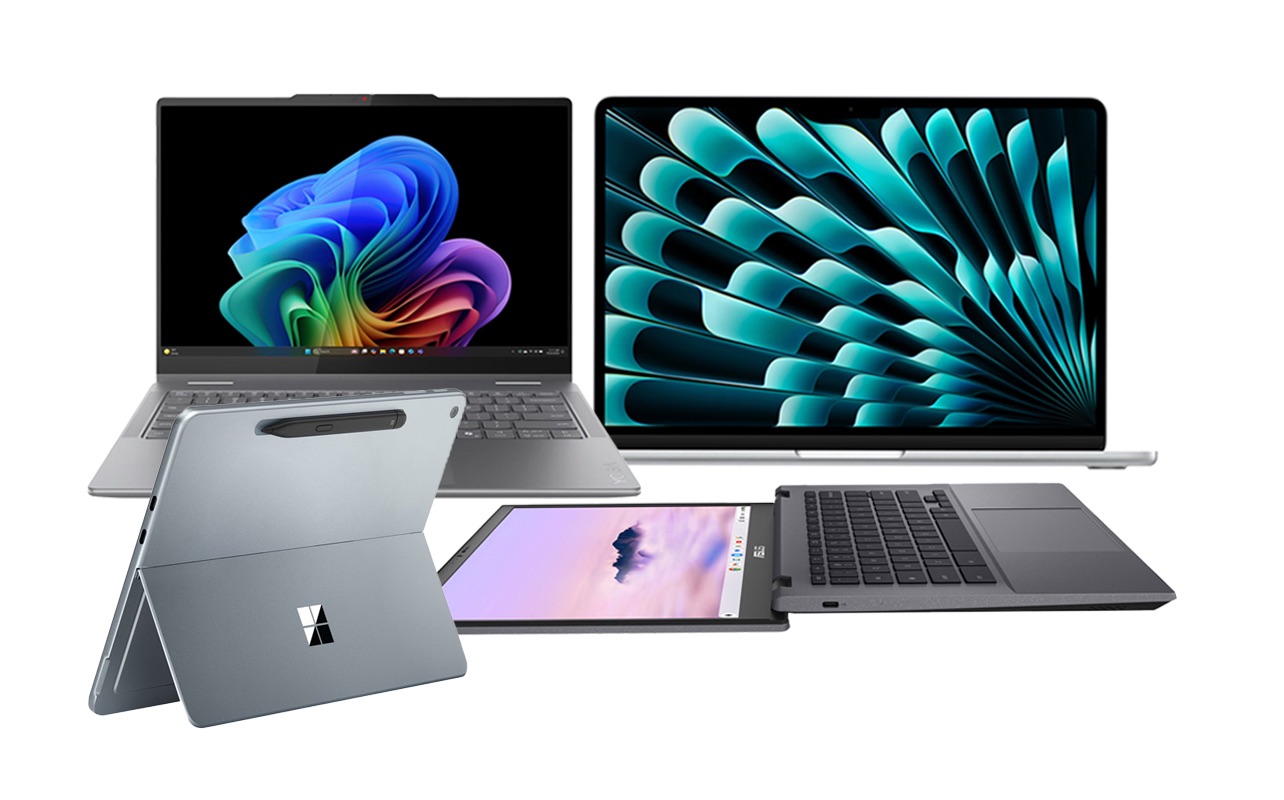
MacBook Neo vs Budget Windows Laptop: A Practical Buyer’s Guide

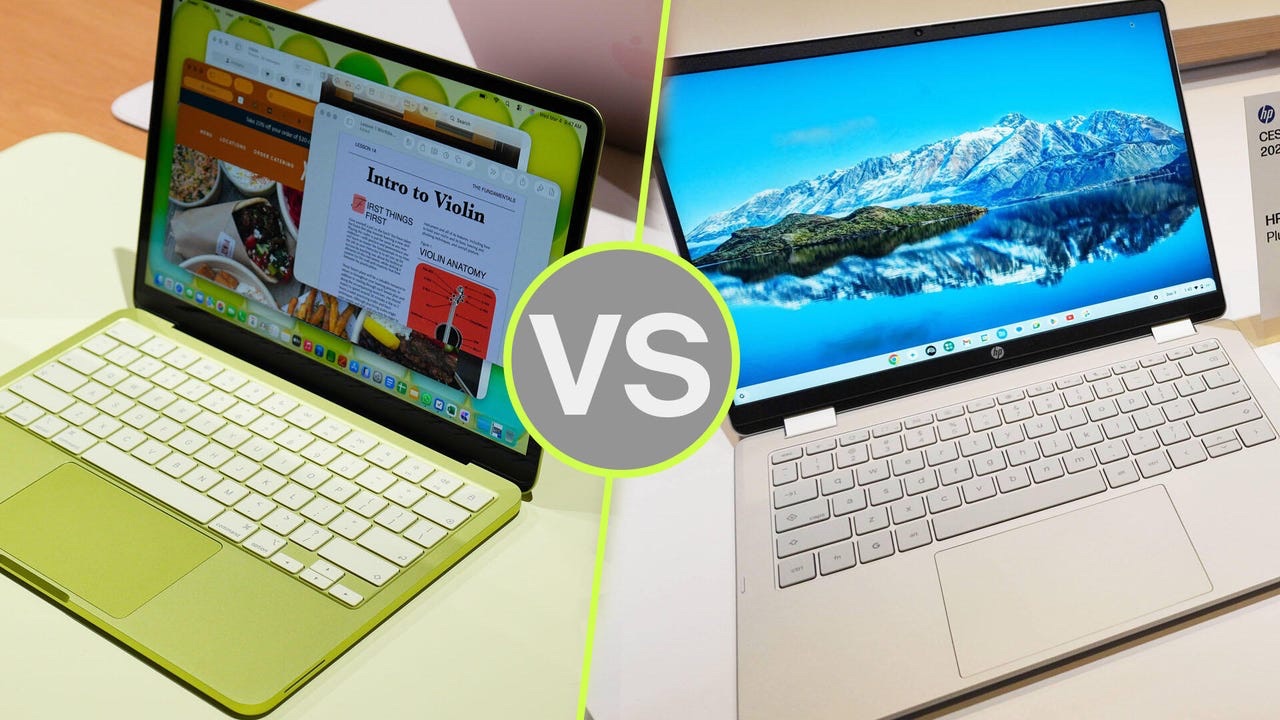
If you’re hunting for a laptop in 2026, odds are you’re stuck between a cheap Windows laptop and the new MacBook Neo.

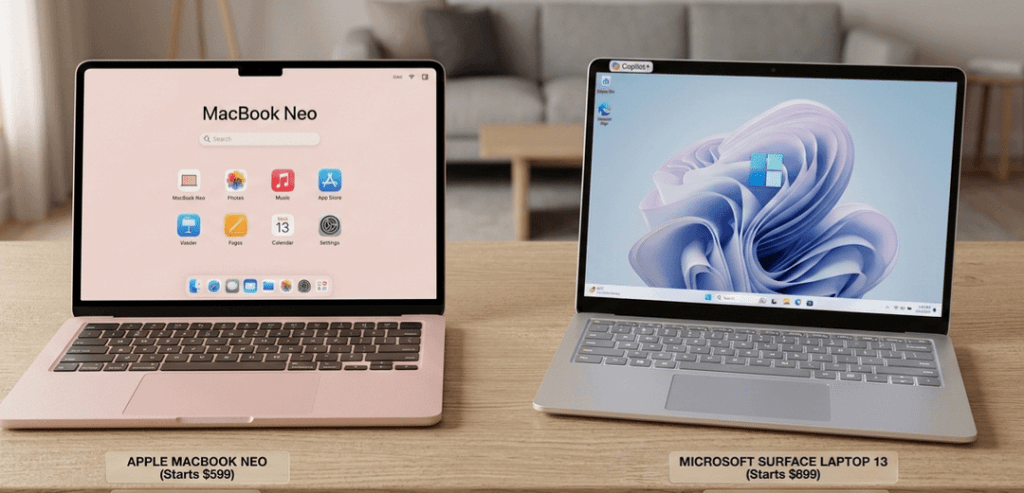
Apple rolled out the Neo to take on entry-level PCs and Chromebooks head-on. It’s the lowest-priced MacBook ever, starting at $599 USD (about $799 CAD).

But is it actually better than a budget Windows laptop? Or are you just paying extra for that Apple logo?

Let’s break it down, plain and simple.

Design and Build Quality

Here’s where the MacBook Neo pulls ahead, no contest.

Apple gives you a full aluminum chassis at a price where you’d usually just get plastic. Most cheap Windows laptops feel flimsy in comparison and wear out faster.

It’s light, too just 2.7 pounds. Plus, you get a few color choices: silver, indigo, citrus, and blush.

Most budget Windows laptops cut corners on design. Expect thick bezels, bulkier builds, and keyboards that don’t feel great.

Bottom line: If you care about looks and durability, the Neo wins hands down.

Performance

The Neo runs on Apple’s A18 Pro chip the same powerhouse you’ll find in top-tier iPhones.

For everyday stuff like browsing, editing docs, streaming, and basic photo work, it’s quick and responsive. Apple claims it’s up to 50% faster than some PCs in the same price range.

But there’s something you need to know: the Neo comes with only 8GB of RAM, and you can’t upgrade it.

Many Windows laptops in this bracket let you bump the RAM up to 16GB or more, which is better for multitasking and future-proofing.

So, if your work is light and straightforward, the Neo has you covered. But if you want to upgrade down the road or push your laptop harder, Windows is probably the safer bet.

Battery Life

This is the Neo’s sweet spot.

The fanless Apple chip sips power, so you’re looking at 13+ hours on a single charge. That leaves most budget Windows laptops in the dust, which tend to last 6 to 10 hours and get noisy under pressure.

No surprises here the Neo crushes it on battery life.

Software and Ecosystem

This one really comes down to what you’re already using and what you need.

With the Neo, you get all the perks of macOS: solid privacy controls, apps made to run smoothly, and super easy syncing with your iPhone and other Apple gear.

On the other side, Windows still leads for gaming, business software, and running old-school apps.

If you’re deep in the Apple world, the Neo feels right at home. But if you need the widest compatibility, Windows is the way to go.

Ports and Expandability

Windows laptops take this round.

The MacBook Neo gives you just two USB-C ports and a headphone jack no USB-A, HDMI, or SD card slot. No chance to upgrade storage or RAM, either.

Budget Windows laptops usually offer more: extra ports, sometimes even upgradeable parts.

So, if you need to plug in lots of stuff or want the option to upgrade, Windows wins.

Who should buy the MacBook Neo?

Go for the Neo if you’re a student, a writer, a casual user, or already use a bunch of Apple devices. You’ll get a slick, long-lasting laptop that handles everyday tasks with ease.

Who Should Buy a Budget Windows Laptop?

A Windows laptop makes more sense if you want more ports, plan to upgrade RAM or storage, need to run Windows-only apps, or want to play games.

Final Verdict

The MacBook Neo is easily Apple’s best bang-for-your-buck laptop yet. Premium look and feel, killer battery life, and smooth performance.

But 8GB of non-upgradeable RAM and only a couple of ports mean it’s not for everyone.

If you want something simple, reliable, and portable, get the MacBook Neo. But if you care about flexibility and options, stick with a budget Windows laptop. That’s still the smarter move for a lot of people.

Apple MacBook Buyer’s Guide (2026): Which MacBook Should You Buy?

Introduction

Choosing the right MacBook in 2026 is not simply a matter of buying the newest model. Apple’s laptop lineup now includes several options targeting different types of users from budget buyers to professionals running demanding workloads.

This guide explains the current MacBook lineup, key specifications, and which model is the right purchase depending on your needs.

The Current MacBook Lineup

Apple’s laptop lineup currently includes three primary categories:

MacBook Air (M5) MacBook Pro (M5, M5 Pro, M5 Max) MacBook Neo

Each model is designed for a different level of performance and price.

MacBook Air (M5)

The MacBook Air remains the best general-purpose laptop in Apple’s lineup. It is designed for portability, battery life, and everyday productivity.

Key specifications

Apple M5 chip 13-inch and 15-inch display options Wi-Fi 7 connectivity Up to 14 hours of battery life Starting around $999 USD

The M5 chip delivers moderate performance gains compared to previous generations, including faster GPU performance and improved efficiency. 

Who should buy it?

The MacBook Air is the best option for:

Students Writers and bloggers Office and productivity work Web development Casual photo editing

For most users, the MacBook Air provides the best balance of price, performance, and battery life.

MacBook Pro (M5, M5 Pro, M5 Max)

The MacBook Pro is designed for demanding workloads such as software development, video production, and professional design.

Key specifications

Apple M5, M5 Pro, or M5 Max chips 14-inch and 16-inch models Liquid Retina XDR display Up to 128GB unified memory Up to 24 hours of battery life

These models deliver significantly higher performance for tasks such as video rendering, 3D graphics, and large-scale data processing. 

Who should buy it?

The MacBook Pro is best for:

Video editors Software developers 3D artists Engineers and data scientists Professional creators

If your work relies on heavy applications such as Final Cut Pro, Blender, or Xcode, the MacBook Pro is the correct choice.

MacBook Neo

The MacBook Neo is Apple’s newest entry-level laptop aimed at students and budget buyers.

Key specifications

Lower price tier (around $599–$699) Lightweight design Focus on basic productivity

The Neo introduces improved repairability compared to previous MacBooks, using screws instead of glued components in some areas. 

Who should buy it?

The MacBook Neo is designed for:

Students Light productivity users Web browsing and streaming Basic school or office work

However, it is not intended for demanding creative workloads.

Key Buying Factors

Before choosing a MacBook, consider the following criteria.

Performance

The chip determines the laptop’s overall capability.

M5: everyday productivity M5 Pro: professional workloads M5 Max: high-end creative and technical work

RAM

For longevity, 16GB RAM is recommended for most buyers.

8GB: basic use 16GB: general productivity and multitasking 32GB+: professional workloads

Storage

Storage cannot be upgraded later, so it is important to choose correctly.

256GB: minimal usage 512GB: recommended baseline 1TB+: creative workflows

Which MacBook Should You Buy?

Best for most people:

MacBook Air (M5)

Best for professionals:

MacBook Pro (M5 Pro)

Best budget MacBook:

MacBook Neo

For most buyers, the MacBook Air offers the best combination of portability, performance, and value.

Final Verdict

Apple’s MacBook lineup in 2026 is clearly segmented:

The MacBook Neo targets entry-level buyers. The MacBook Air remains the best general-purpose laptop. The MacBook Pro delivers the highest performance for professional work.

Choosing the right model depends on your workload, budget, and how long you expect the laptop to last.