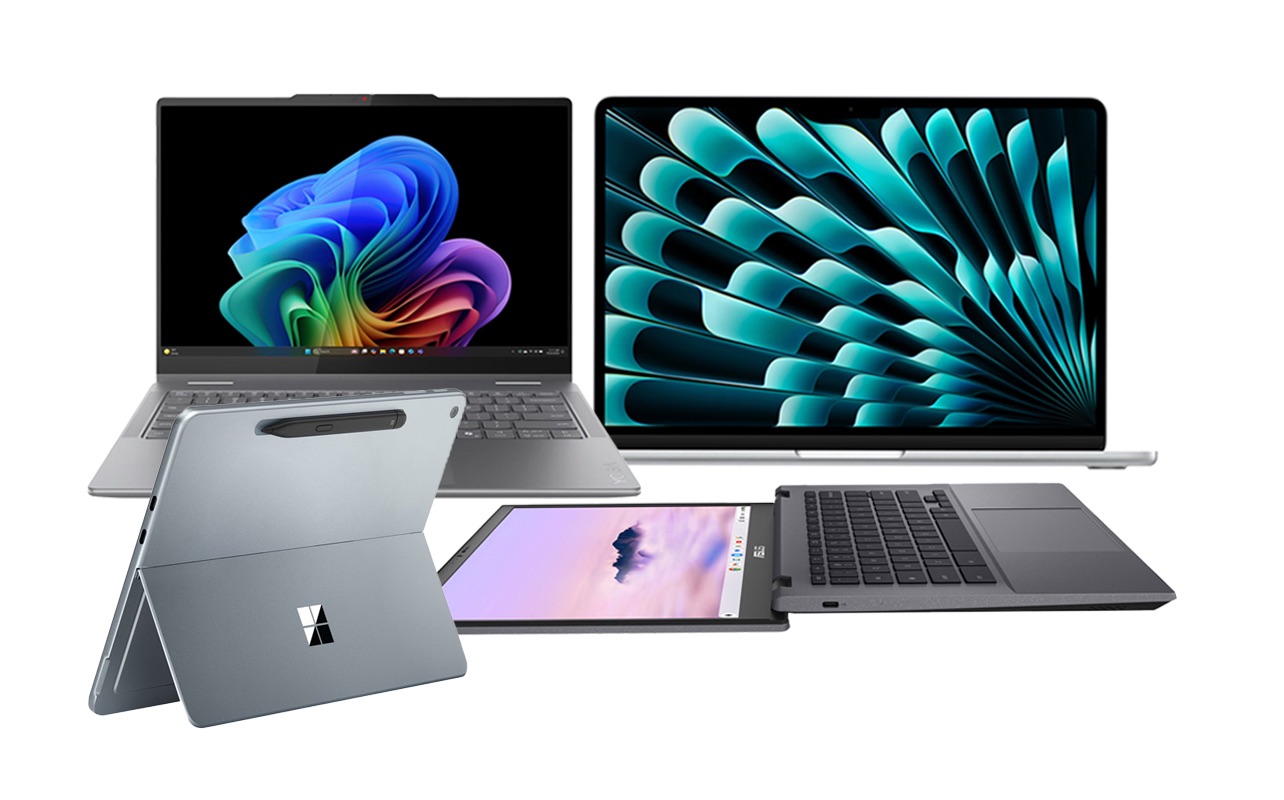
Laptop Buying Guide 2026: How to Choose the Right One for You

Let’s be honest: buying a laptop is still stressful.

You open a browser, type in “best laptop 2026,” and suddenly you’re drowning in jargon. AI accelerators, OLED vs. QD‑LED, Snapdragon X Elite, Copilot+ PC, Thunderbolt 5. It feels like you need a computer science degree just to pick a machine for email and Netflix.

But here’s the truth: the “best” laptop isn’t the one with the highest spec sheet. It’s the one that actually fits your life—whether you’re a student juggling AI‑powered study tools, a creative editing 8K video, or a remote worker who lives on video calls.

This guide cuts through the noise. Let’s find your next machine.

The OS Debate: Apple, Windows, or ChromeOS?

Your ecosystem choice still dictates your entire experience, but in 2026, the lines are blurrier—and AI is everywhere.

· Apple (macOS Sequoia): Apple’s M‑series chips (now M4 and M5) continue to dominate in battery life and raw efficiency. If you’re embedded in the Apple ecosystem (iPhone, iPad, iCloud), the synergy is unmatched. The MacBook Air remains the gold standard for students and professionals who want all‑day battery without a fan. Downsides: gaming is still limited, and upgrading RAM or storage at purchase is pricey.
· Windows 11 (with Copilot+): This is the “do anything” category. Need a 2‑in‑1 tablet/laptop? Windows. Need a desktop‑replacement workstation with discrete graphics? Windows. Looking for a budget machine under $600? Windows. The new wave of Copilot+ PCs (with dedicated NPUs) brings AI features like real‑time translation, system‑wide summarisation, and advanced Windows Studio Effects directly on device—no cloud required.
· ChromeOS (Chromebook Plus): Chromebooks have grown up. The “Chromebook Plus” tier guarantees a minimum spec (Intel Core i3 or AMD Ryzen 3, 8GB RAM, 128GB SSD) and unlocks powerful AI features like built‑in generative photo editing and hands‑free Google Meet enhancements. If 90% of your work lives in a browser or Android apps, a Chromebook offers simplicity, security, and often 10+ hours of battery life for a fraction of the price.

The “3 Pillars” of Performance

You don’t need to know what a “neural processing unit” does under the hood. You just need to understand the three components that actually matter for speed.

The Processor (CPU + NPU)

In 2026, it’s all about the NPU (Neural Processing Unit)—a dedicated chip for AI tasks. A laptop without a decent NPU will feel sluggish in upcoming software.

· Intel: Core Ultra 5 or 7 (Series 2). Avoid older “Core i” models unless you’re on a strict budget.
· AMD: Ryzen AI 7 or 9. Excellent integrated graphics and strong NPU performance.
· Qualcomm: Snapdragon X Elite / X Plus. These ARM‑based chips offer MacBook‑like battery life and silent operation. Just verify that your must‑have apps have native ARM versions or run well under emulation.
· Apple: M4 or M5. Don’t worry about core counts—any of them are blazing fast for 95% of users.

Bottom line: Aim for a chip with an NPU capable of at least 40 TOPS (trillion operations per second)—that’s the baseline for full Copilot+ AI features on Windows.

Memory (RAM)

This is still non‑negotiable. Do not buy a laptop with 8GB of RAM in 2026. It will choke the moment you have a dozen browser tabs, a video call, and an AI assistant running. 16GB is the new minimum. If you do video editing, run virtual machines, or keep hundreds of tabs open, go for 32GB.

Storage (SSD)

NVMe SSDs are standard. Aim for at least 512GB. If you edit video, work with large creative assets, or install multiple AAA games, 1TB is a safer bet. Some ultra‑thin laptops have soldered storage—choose carefully if you think you’ll need to upgrade later.

The Window to Your World: The Display

You look at the screen 100% of the time. Don’t skimp here.

· Resolution: Avoid anything labeled “HD” (1366×768). FHD+ (1920×1200) is the bare minimum. For creative work or media consumption, 2.8K (2880×1800) or 3.2K displays are common and gorgeous.
· OLED vs. IPS / LCD: OLED remains king for contrast and colour—perfect for movies, photo editing, and HDR content. Battery life on OLED has improved significantly, but if you leave static elements on screen for hours, consider a high‑quality IPS or Mini‑LED display (like Apple’s Liquid Retina XDR or Windows “HDR 1000” panels) to avoid any risk of burn‑in.
· Refresh Rate: For gamers and even casual scrollers, 120Hz or higher makes everything feel smoother. For office work, 60Hz is still fine.

Ports, Battery, and the “Dongle Life”

One of the biggest complaints remains the lack of ports on sleek laptops.

· USB‑C / Thunderbolt: Most premium laptops rely entirely on USB‑C (Thunderbolt 4 or 5 on Intel models). If you still use USB‑A peripherals or need HDMI out, factor a small dongle or hub into your budget.
· Battery Life: Look for advertised “all‑day” claims, but read reviews. ARM‑based laptops (MacBooks, Snapdragon X Elite) routinely hit 15–20 hours. x86 laptops (Intel/AMD) have improved but typically land in the 8–12 hour range.
· Weight: If you commute daily, stay under 3.5 lbs. Ultra‑portables under 2.5 lbs are now common and powerful enough for most tasks.

Quick Picks for Every Type of User

If you just want the shortlist, here are the archetypes to search for:

· The Student: MacBook Air (M4) or a Snapdragon X Elite Copilot+ PC (e.g., Dell XPS 13, Lenovo Slim 7x). Both are light, have all‑day battery, and handle everything from essays to light creative work.
· The Office Warrior: Lenovo ThinkPad X1 Carbon (Gen 13) or Dell Latitude 9450. The ThinkPad still has the best keyboard in the business, and both offer enterprise‑grade build quality, 5G options, and superb AI meeting features.
· The Creative (Photo/Video): MacBook Pro 14/16 (M4 Pro/Max) or Asus ProArt P16. Look for OLED or Mini‑LED displays with high colour accuracy (DCI‑P3 or AdobeRGB coverage).
· The Gamer on the Go: Asus ROG Zephyrus G14 (2026 model) or Razer Blade 14. These pack NVIDIA GeForce RTX 50‑series GPUs into relatively portable chassis without the over‑the‑top gamer aesthetic.
· The Budget Conscious: Acer Swift Go 14 or HP Pavilion Aero 13. You can often find solid configurations with 16GB RAM, 512GB SSD, and a decent OLED screen for under $800.

The Bottom Line

Don’t get caught in the spec war. A laptop is a tool—and in 2026, AI integration, battery life, and real‑world usability matter more than peak teraflops.

Before you click “buy,” ask yourself: Does this machine make my daily workflow smoother, or am I paying for features I’ll never use?

Focus on getting 16GB of RAM (or more), a modern processor with a capable NPU, and a screen you can comfortably stare at for hours. Hit those three marks, and you’ll be happy with your purchase for years to come.

What are you using your laptop for in 2026? Drop a comment below—I’m happy to suggest specific models for your budget and workflow!

Your Computer May Already Be Infected—7 Signs to Check Right Now

You know that feeling. The cursor starts stuttering. A random command prompt window flashes on screen for a split second—so fast you convince yourself you imagined it. Then your friend messages you: “Why did you just send me a weird link at 3:00 AM? You were asleep.”

Congratulations. Your computer might be patient zero in a digital zombie apocalypse.

We like to think getting a virus is like it is in the movies—loud sirens, skulls on the screen, a hacker in a hoodie laughing maniacally. In reality, malware is a sneaky parasite. It doesn’t want you to know it’s there. It wants to use your machine to mine crypto, steal your passwords, or email your boss something regrettable.

Here is how to spot the silent invaders before they turn your PC into a botnet soldier.

1,The “Cursor Poltergeist”

If your mouse pointer moves on its own—clicking things while you sit there with your hands in the air eating chips—unplug your internet immediately. While sometimes this is a faulty touchpad driver, it is often a sign that a remote access trojan (RAT) is letting someone else drive.

2,The Fan That’s Screaming in an Empty Room

Open your task manager. Is your CPU usage at 98% even though you only have one Chrome tab open? If your laptop fan sounds like a jet engine taking off while you’re staring at the desktop wallpaper, you likely have “cryptojacking” malware. Hackers are renting out your computer’s processing power to mine Bitcoin. You get the noise and the electric bill; they get the money.

3,The Blinking Hard Drive (When You’re Asleep)

Your computer should not be grinding away at 2:00 AM when it’s supposed to be in “Sleep” mode. If the hard drive activity light is flashing furiously while you’re brushing your teeth, the malware is busy. It’s exfiltrating your data, downloading more malware, or spreading itself to your contacts.

4,The Invisible Ransomware Note (The Scariest One)

This is the big one. If you try to open a document or a photo and it won’t open—or it opens as gibberish—do not restart your computer.
Check your file explorer. If your files now have weird extensions (like .encrypted, .lockbit, or just random strings of numbers), you have ransomware. The files aren’t corrupted; they’re kidnapped. Restarting the computer often destroys the only chance you have to recover them.

5,Fake “System” Alerts That Want You to Panic

A pop-up that says “YOUR COMPUTER HAS BEEN LOCKED. CALL MICROSOFT IMMEDIATELY.” is the digital equivalent of a cold call from “Windows Support.”
Real antivirus software doesn’t scream at you in all caps with a countdown timer. If a pop-up demands you call a phone number to “fix” it, it’s a scam. Do not call the number. They don’t want your virus; they want your credit card.

6,The Browser Hijack

Your home page is suddenly a search engine you’ve never heard of called “SearchSafe” or “QuickFind.” No matter how many times you change it back, it reverts. You’re looking at a browser hijacker. It’s not dangerous in a “steal your bank account” way, but it’s dangerous in a “I will show you ads laced with actual malware” way.

7,The Vanishing Storage

Did you have 500GB of free space last week, and now you have 20GB? Sometimes malware writes massive, junk log files to fill your drive to cause a crash. Sometimes, it’s using your hard drive to store stolen data or illegal content without your knowledge. If your space is evaporating for no reason, run a deep scan.

The Golden Rule: Trust the Weird

Viruses used to be obvious. Now, they try to blend in. But they can’t hide the physics.

· Lag: If your high-end PC feels like a netbook from 2010, something is running in the background.
· Network Activity: If your internet is slow and you see high data usage in task manager but you aren’t streaming anything—something is phoning home.

What to do if you see these signs?

  1. Disconnect. Unplug the ethernet or turn off Wi-Fi. This cuts the hacker’s remote access and stops data from leaving.
  2. Don’t pay. If it’s ransomware, the FBI advises not to pay. You’re funding the next attack.
  3. Boot in Safe Mode (Hold Shift while restarting). Run a scan from there. Malware struggles to run in Safe Mode.

The Bottom Line
If you have to ask yourself, “Is my computer acting… weird?”—it probably is.

Scan your machine. Change your passwords (on a different, clean device). And for the love of all that is holy, stop downloading “Free Adobe Photoshop 2024.exe” from pop-up ads.

Found this helpful? Hit share to save a friend from the embarrassment of explaining to their bank why someone in Russia bought $800 worth of gift cards using their PC.

Have you ever had a virus? What was the weirdest thing it did? Drop it in the comments—let’s trauma bond.

Top 10 Best Budget Laptops in 2026: Quality Computing Without Breaking the Bank

The days when “budget laptop” meant sluggish performance and dim, low-resolution screens are long gone. In 2026, you can find genuinely capable machines for well under $1,000—many even under $500—that handle everyday computing with ease. Whether you need a reliable workhorse for school, a versatile 2-in-1, or even a budget-friendly gaming rig, there’s an affordable option waiting for you.

After analyzing expert reviews from PCMag, CNET, IGN, and other trusted sources, here are the top 10 budget laptops you can buy in 2026.

Acer Aspire 3 (A315-24P) – Best Budget Laptop for Most Buyers

Price: Under $500

The Acer Aspire 3 consistently tops expert lists as the best all-around budget laptop, and for good reason. It delivers smooth everyday performance, modern Wi-Fi 6 connectivity, and impressive battery life at a price that’s hard to beat .

While it won’t win any design awards—the chassis is basic plastic—the Aspire 3 handles web browsing, office work, and video streaming without breaking a sweat. The base configuration offers excellent value, though the higher-end models face stiffer competition .

Pros:

· Smooth everyday operation
· Excellent battery life
· Current Wi-Fi 6 support
· Aggressive starting price

Cons:

· Dated, somewhat flimsy design
· Display quality is just okay
· Limited performance headroom for demanding tasks

Best for: Students, home office workers, and anyone needing a reliable daily driver without spending a fortune.

Acer Chromebook Plus 514 – Best Chromebook

Price: Around $350

If your computing needs revolve around the web—browsing, email, Google Docs, streaming—the Acer Chromebook Plus 514 is arguably the best budget laptop money can buy. It achieved an incredible 12 hours and 50 minutes in battery testing, outlasting nearly every competitor .

The Chromebook Plus designation ensures solid specs (Intel Core i3, 8GB RAM) and includes bonus perks like 12 months of Google AI Pro with 2TB of cloud storage . The 14-inch touchscreen display is sharp enough for everyday use, and the keyboard is surprisingly comfortable for extended typing sessions .

Pros:

· Exceptional battery life
· Solid performance for web-based tasks
· Comfortable keyboard
· Includes Google AI Pro benefits

Cons:

· No keyboard backlighting
· Limited to ChromeOS (can’t run traditional Windows apps)
· Webcam quality is average

Best for: Students, casual users, and anyone who lives primarily in a web browser.

Acer Aspire 14 AI – Best Budget Copilot Plus PC

Price: $500–$620

Acer’s Aspire 14 AI is making waves as the most affordable Copilot Plus PC on the market. Powered by Intel’s Lunar Lake processor (Core Ultra 5 226V) with 40 TOPS of NPU performance for local AI tasks, it’s a glimpse into the future of Windows computing .

Beyond the AI credentials, this laptop delivers exceptional value with long battery life, competitive performance, and a useful selection of ports. CNET’s reviewer found it at Costco for just $500—an incredible price for a next-gen AI laptop .

Pros:

· Cheapest Copilot Plus PC available
· Exceedingly long battery life
· Strong performance for the price
· Solid port selection

Cons:

· Display is a bit dull
· Design is uninspired

Best for: Early adopters who want AI features without paying premium prices.

Dell 15 – Best Ultra-Budget Windows Laptop

Price: Around $280

If your budget is truly tight, the Dell 15 delivers a surprisingly capable Windows 11 experience for under $300. It features a large 15.6-inch 1080p screen, decent battery life (8 hours 19 minutes in testing), and a clever curved lid design that slightly elevates the keyboard for better ergonomics .

While the keyboard is a bit bouncy and performance won’t win any races, the Dell 15 avoids the serious drawbacks that plague some ultra-cheap laptops. CNN Underscored named it the best budget Windows laptop after testing half a dozen affordable models .

Pros:

· Extremely affordable
· Large 1080p display
· Decent battery life for the price
· Ergonomic design

Cons:

· Keyboard feels bouncy
· Plastic construction
· Limited performance

Best for: Budget-conscious buyers who need Windows compatibility on a shoestring.

Lenovo ThinkBook 16 Gen 7 – Best Budget Business Laptop

Price: Around $800

The Lenovo ThinkBook 16 Gen 7 proves you don’t need to spend $1,500 for a capable work laptop. It offers a comfortable keyboard, decent port selection, and reliable performance for productivity tasks. The large 16-inch screen provides ample workspace for multitasking .

While the display won’t impress creative professionals (it’s an economy-class panel), and it lacks Wi-Fi 6E or 7 support, the ThinkBook delivers where it matters for business users: reliability and comfort .

Pros:

· Affordable for a business-class laptop
· Comfortable, travel-friendly keyboard
· Decent array of ports
· Large 16-inch screen

Cons:

· Basic display quality
· Wi-Fi 6, not 6E or 7
· Not for creative work

Best for: Remote workers, business travelers, and anyone who prioritizes keyboard comfort.

Acer Aspire 16 AI – Best Big-Screen Budget Laptop

Price: $550–$700

If screen real estate matters to you, the Acer Aspire 16 AI is an Editors’ Choice winner for good reason. This 16-inch laptop features a sharp 120Hz display, an unusually high-res 1440p webcam, and excellent build quality that exceeds expectations for the price .

Powered by Qualcomm’s Snapdragon X chip, it delivers competitive performance and long battery life. The port selection is generous, and the overall package offers tremendous value .

Pros:

· Colorful 120Hz display
· High-resolution 1440p webcam
· Broad port selection
· Excellent value for a 16-inch laptop

Cons:

· Stiff keyboard
· Speakers lack punch for the size

Best for: Students, professionals, and anyone who wants a large screen without a large price tag.

Dell Inspiron 14 2-in-1 (7445) – Best Budget Convertible

Price: Around $680

For those who want the flexibility of a touchscreen convertible, the Dell Inspiron 14 2-in-1 offers a sturdy, polished build with decent speakers and respectable battery life. It handles everyday tasks competently and can fold into tablet mode for note-taking or media consumption .

However, be aware that cheaper competitors offer better display quality and overall performance. The Inspiron’s screen leaves something to be desired, and it lacks faster USB4 or 20Gbps ports .

Pros:

· Sturdy, polished build
· Respectable battery life
· Impressive speakers for the size
· Flexible 2-in-1 design

Cons:

· Display quality is mediocre
· Performance lags behind competitors
· No USB4 support

Best for: Students and casual users who want a convertible laptop on a budget.

Acer Nitro V ANV16 – Best Gaming Laptop Under $1,000

Price: Under $1,000

Gaming on a budget doesn’t mean settling for integrated graphics. The Acer Nitro V ANV16 packs an AMD Ryzen 7 8845HS processor and Nvidia GeForce RTX 4060 GPU, delivering solid 1080p gaming performance with high settings in most titles .

The 16-inch 165Hz display is well-matched to the hardware, and Acer was generous with storage (1TB NVMe SSD) and RAM (16GB). Battery life is the main compromise—expect less than an hour of gaming on battery—but that’s true of most gaming laptops .

Pros:

· Excellent performance for the price
· 165Hz high-refresh-rate display
· 1TB storage included
· RGB keyboard

Cons:

· Limited port selection
· Disappointing battery life
· Heavy at 5.5 pounds

Best for: Budget-conscious gamers who prioritize performance over portability.

Lenovo LOQ 15 – Best Mid-Range Gaming Laptop

Price: $1,300–$1,500

Stretching the definition of “budget,” the Lenovo LOQ 15 offers impressive value for gamers who can spend a bit more. It features an RTX 5060 GPU with Multi Frame Generation support, 32GB of RAM, and a high-refresh-rate 1080p display .

The trade-offs are predictable: mediocre battery life and a screen that’s not very bright (300 nits). But for gaming performance, this is one of the best values in its class .

Pros:

· RTX 5060 with next-gen features
· 32GB of RAM (plenty for gaming)
· High refresh rate display
· Good value overall

Cons:

· Mediocre battery life
· Limited screen brightness
· Needs to stay plugged in for gaming

Best for: Gamers with a slightly higher budget who want RTX 50-series performance.


  1. MSI Katana 15 HX – Best Value Gaming Laptop

Price: Around $970

Powered by Nvidia’s entry-level GeForce RTX 5050, the MSI Katana 15 HX delivers smooth 60fps gaming with or without DLSS 4 support. PCMag awarded it an Editors’ Choice for its winning combination of performance and value .

The keyboard is comfortable with RGB lighting, connectivity is varied, and the overall package is hard to beat at this price point. Just be aware that the 512GB storage fills up quickly with modern games, and the display is somewhat dim .

Pros:

· Capable gaming performance
· RTX 5050 with DLSS 4 support
· Comfortable RGB keyboard
· Good port selection

Cons:

· Only 512GB storage
· Dim display
· Chunky 15-inch chassis

Best for: Gamers who want dedicated graphics without breaking the $1,000 mark.

How to Choose the Right Budget Laptop

Windows vs. Chromebook

This is the most important decision you’ll make. Chromebooks run ChromeOS, which is essentially a browser-based operating system. They’re perfect if you spend your time in Google Docs, Gmail, and web browsing. They offer better battery life, simpler operation, and often lower prices .

Windows laptops are necessary if you need specific applications that don’t have web versions, such as Adobe Creative Cloud, specialized business software, or traditional PC games .

RAM and Storage Matter Most

Budget laptops rarely have cutting-edge processors. What matters more is having enough RAM (at least 8GB, preferably 16GB) and a solid-state drive (SSD) rather than a slow mechanical hard drive. An SSD alone makes a massive difference in everyday responsiveness .

Battery Life Is a Best-Case Estimate

Manufacturer battery claims like “up to 12 hours” represent optimal conditions. In real-world use, most budget laptops deliver 4-8 hours of mixed use. Chromebooks typically outperform Windows laptops in battery longevity .

Don’t Expect Premium Build Quality

At these prices, you’re getting plastic chassis, not aluminum unibodies. Budget laptops are generally less durable than premium models, so consider investing in a laptop sleeve or bag for protection .

The Bottom Line

The best budget laptop for you depends entirely on your needs. For most people, the Acer Aspire 3 offers the best balance of price, performance, and reliability. Chromebook users should look no further than the Acer Chromebook Plus 514. And if you’re a gamer on a budget, the Acer Nitro V ANV16 delivers the best gaming performance under $1,000.

Remember that “budget” doesn’t mean “compromised” in 2026. With smart shopping, you can get a laptop that handles everyday computing with ease for well under $600—and sometimes under $300. Choose the laptop that matches your primary use case, and you’ll be satisfied for years to come.